
![Cover image for [Claude Code #15] Special inputs and shortcuts, from ! shell mode to Vim](/assets/images/posts/9545c7a5-9557-495b-b851-5e709fe3c63b/claude-code-keyboard-shortcuts.jpg)
Even with the same tool, perceived productivity can differ by several times between fast and slow typists. Claude Code has plenty of special inputs and shortcuts that create that gap.
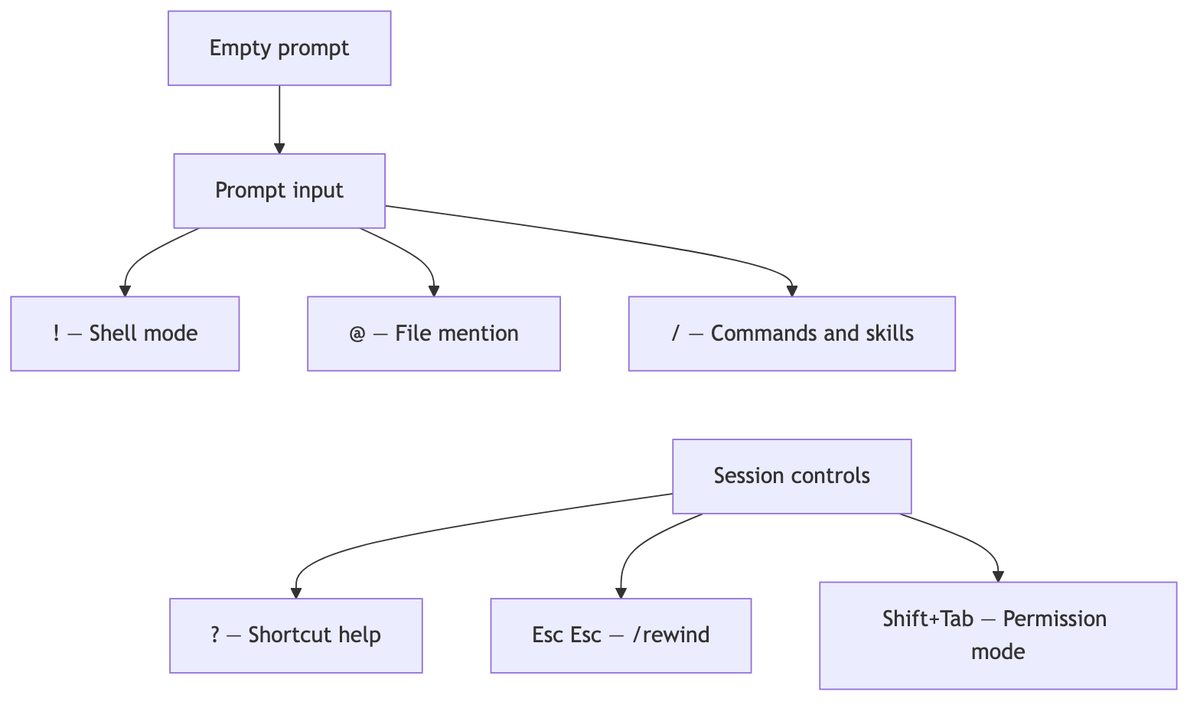
This edition focuses on the ones you’ll use every day. Press ? in an empty input field to open the full shortcut help; you can find the rest there.
If Claude Code Part 14 was automation outside the session, this time it’s the handwork inside the session.
! Shell mode: run commands directly without going through AI
Start input with ! to run a shell command directly without going through Claude.
! npm test
! git status
According to Official interactive mode documentation, the command and its output are added directly to the conversation context, and Claude automatically responds to the result. With ! npm test on one line, you even get an explanation of the failure. Disable automatic responses with respondToBashCommands.
After entering part of a command, press Tab to autocomplete from the previous ! command history.
@ mentions: insert files directly
According to Official workflows documentation, enter @경로 in the prompt to include the entire file in the conversation. You don’t have to wait for Claude to find and read it.
@src/utils/auth.js explain the logicType @ to open the path suggestion menu. Mentioning a directory includes its file list.
8 shortcuts your fingers should remember
- Esc: interrupt a response. Press twice in an empty input field to open the
/rewindmenu - Shift+Tab: cycle permission modes (default → acceptEdits → plan)
- Ctrl+O: transcript viewer; expand tool-call details
- Ctrl+B: move a running task to the background (twice in tmux)
- Ctrl+T: toggle Claude’s task checklist (the background task list is
/tasks) - Ctrl+R: reverse-search input history
- Ctrl+G: continue writing the current prompt in the default text editor
- Ctrl+V: paste a clipboard image (Cmd+V in iTerm2, Alt+V on Windows·WSL)
When you can’t enter a new line
Because Enter sends immediately, entering multiple lines can feel awkward. Here are three common methods.
\then Enter: works in every terminal- Shift+Enter: supported by default in iTerm2·Ghostty·Kitty·Windows Terminal and others
- Ctrl+J: works anywhere without configuration
For long code or logs, just paste them. Multiline pastes are handled automatically.
/btw: ask side questions without breaking your flow
During a task, you may suddenly wonder, “What was the name of that configuration file again?”
Ask with /btw to get an answer without adding it to the conversation history. Claude answers based on the conversation so far, while the question and answer appear and disappear only as an overlay.
The key is keeping the main task’s context clean. You can ask even while Claude is working.
There’s a Vim mode too
If you miss Vim’s terminal feel, enable it in the Editor mode of /config.
Press Esc to enter NORMAL mode, then familiar operations such as h/j/k/l movement, dd deletion, and editing text objects like ciw are available.

Summary
Start by making just three habits. Execute commands directly with !, mention files with @, and rewind with Esc twice in an empty input field.
For the rest, press ? in an empty input field and look them up when needed.
The next edition covers small but convenient features such as /copy, /export, and /statusline.
Sources and verification criteria
- Claude Code official documentation — Interactive mode (Anthropic, checked 2026-08-14)
- Claude Code official documentation — Common workflows (Anthropic, checked 2026-08-14)
Continue reading
Claude Code series
- Previous edition: [Claude Code #2] /plan plan mode: agree on the design before making changes
- Previous edition: [Claude Code #1] Getting started with /init and automatic CLAUDE.md generation