
![Cover image for [Claude Code #4] /resume·/branch·/fork: Continue, split, and fork conversations](/assets/images/posts/47e09652-81fc-45e1-9b1c-aa17fc594025/claude-code-resume-branch-fork.jpg)
It is easy to assume that closing the terminal also erases your conversations with AI. Then you have to re-enter from scratch all the context you carefully explained yesterday.
With Claude Code, you do not need to. Every conversation is saved locally as a session, so you can retrieve it and continue at any time.
This installment covers /resume for continuing conversations, /branch for splitting them, and /fork for cloning them and assigning another task.
Like the permissions in Claude Code, Part 3, sessions are a foundational feature you use every day. Let’s start with the entry points.
Continuing: an overview of entry points
Based on Official session documentation, the ways to resume are divided as follows.
claude --continue        # Resume the most recent session in the current directory
claude --resume          # Open the session picker
claude --resume name     # Resume directly by name
claude --from-pr 1234    # the relevant PRView only sessions associated with it
If you are already in a session, use /resume to switch to another conversation.
Resuming does not restore only the conversation. It also restores tool-call history, the model in use, and the permission mode.
There are exceptions. You must turn plan mode back on manually after resuming, and specify bypassPermissions again with a flag or setting when launching.
Execution flags such as --mcp-config and --add-dir are not restored either, so you must pass them again when resuming.
How to use the session picker
Run /resume without arguments to display the session list. There are several shortcuts available in the list.
- Space: Preview session contents
- Ctrl+R: Rename
- Ctrl+W: Expand the scope to all worktrees in the same repository (shown only for multi-worktree setups)
- Ctrl+A: Expand to all projects on this computer
- Ctrl+B: Filter to sessions on the current git branch
Pasting a PR URL from GitHub, GitLab, or another service into the search field may also find the session that created that PR.
Naming sessions makes them easier to find
Once sessions pile up, finding “that task from the day before yesterday” becomes a chore. Give them names, and claude --resume 이름 is all it takes.
At startup, use claude -n auth-refactor; while working, use /rename auth-refactor.
If you do not name a session, it is automatically given a title summarizing the first prompt. This automatic title appears in search, but it is not a target for --resume 이름.
/branch: When testing another approach
If everything so far has been about “continuing,” /branch is about “splitting.”
It creates a new session that copies the conversation so far and switches you to it. The original remains unchanged.
/branch try-streaming-approachIt is useful when a refactoring direction branches in two. You can try option A in one branch, then return to the original and pursue option B if A does not work.
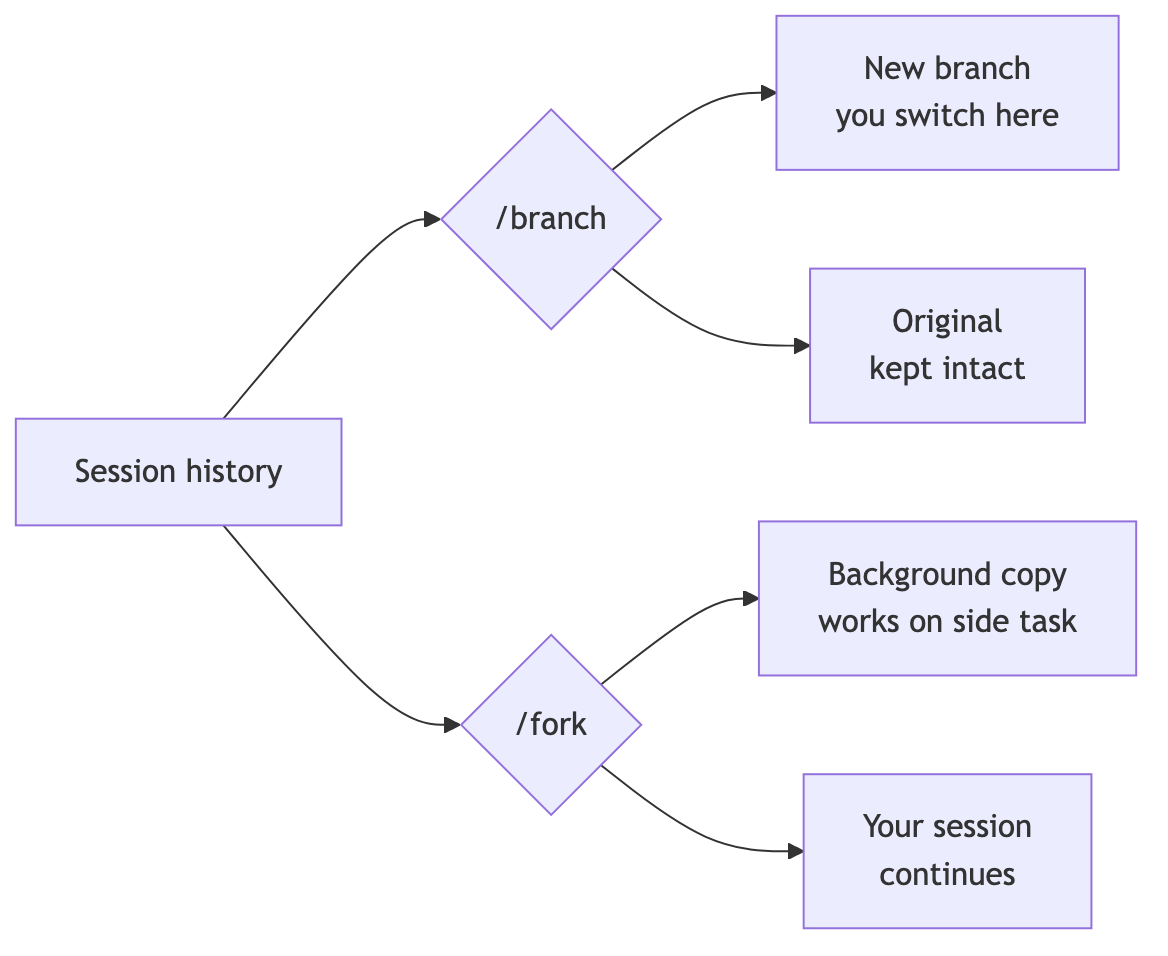
To split a session when starting from the terminal, use --fork-session.
claude --continue --fork-sessionDo not resume the same session simultaneously in two terminals without forking. Messages from both sides will get mixed into one record.
/fork: Clone a session and delegate another task
If /branch is the branch I switch to, /fork is a clone that creates a background worker.
As Official commands documentation explains, a background session inherits the current conversation in full while you continue the original conversation. It is like handing a side task to an assistant that already understands the context.
/fork Try writing the test code as well with this approachUse it when delegating a long investigation or repetitive task while continuing the main work. When the clone modifies code, it creates and works in its own worktree, so it does not conflict with your files.
Large sessions left idle for a long time ask whether to resume with a summary
According to Official session documentation, resuming a session with more than 100,000 tokens that has been idle for over an hour on a Pro or Max plan presents a choice.
Resuming with a summary carries forward a summary instead of the full history, making subsequent requests lighter. Resuming as-is preserves every detail, but increases the cost of each request.
The deciding factor is whether the task needs the finer details. Keep in mind that anything omitted by the summary disappears from the context.

Summary
Session management comes down to three verbs: continue with --resume, split with /branch, and clone with /fork.
Make naming sessions a habit with (-n, /rename), and parallel work becomes much easier.
The next installment covers the /rewind checkpoint that rewinds code and conversations together. Knowing how to undo before splitting gives you extra confidence.
Sources and verification criteria
- Claude Code official documentation — Manage sessions (Anthropic, checked 2026-08-14)
- Claude Code official documentation — Commands (Anthropic, checked 2026-08-14)
Continue reading
Claude Code series
- Previous installment: [Claude Code #2] /plan planning mode: agree on the design before making changes
- Previous installment: [Claude Code #1] /init: Get started by automatically generating CLAUDE.md