
![Cover image for [Claude Code #2] /plan mode: agree on the design before making changes](/assets/images/posts/677e2ba6-9b08-4518-ae32-cdabb9d669c4/claude-code-plan-mode-approval.jpg)
Give an AI coding tool a large task and it can sometimes head in the wrong direction. It starts changing files before you have even set the course.
When you realize “this isn’t the right direction” after changes have spread across ten files, it is already too late. Reverting is not cheap.
Claude Code plan mode reverses this order. You review the plan before it touches the code, and editing starts only after approval.
If you set up the project with Claude Code, Part 1 using /init, this part covers how to start large changes safely.
What plan mode does
In plan mode, Claude only investigates and makes suggestions.
The explanation for Official permission modes documentation is simple: it reads files, runs exploratory shell commands, and writes plans, but does not edit source code.
Editing is blocked until you approve the plan. No matter how persuasive the AI sounds, it cannot touch the code (except in sessions with bypass permissions enabled).
Three ways to enable it
The fastest way is to press Shift+Tab during a session. Based on Official workflows documentation, permission modes cycle default → acceptEdits → plan.
To apply it to only one request, prefix the prompt with /plan.
/plan Replace the payment module Stripe with a custom implementationTo start in plan mode from the beginning, use the flag in the terminal.
claude --permission-mode planTo leave without approving the plan, press Shift+Tab again.
Plan approval flow
When Claude finishes the plan, it asks how to proceed. There are three options.
One is to approve and proceed automatically. It continues without asking about each edit.
Another is to approve but confirm manually for every edit. This is safer for sensitive code.
The last is to continue planning. You remain in plan mode and refine it with requests such as “change this part like this.”
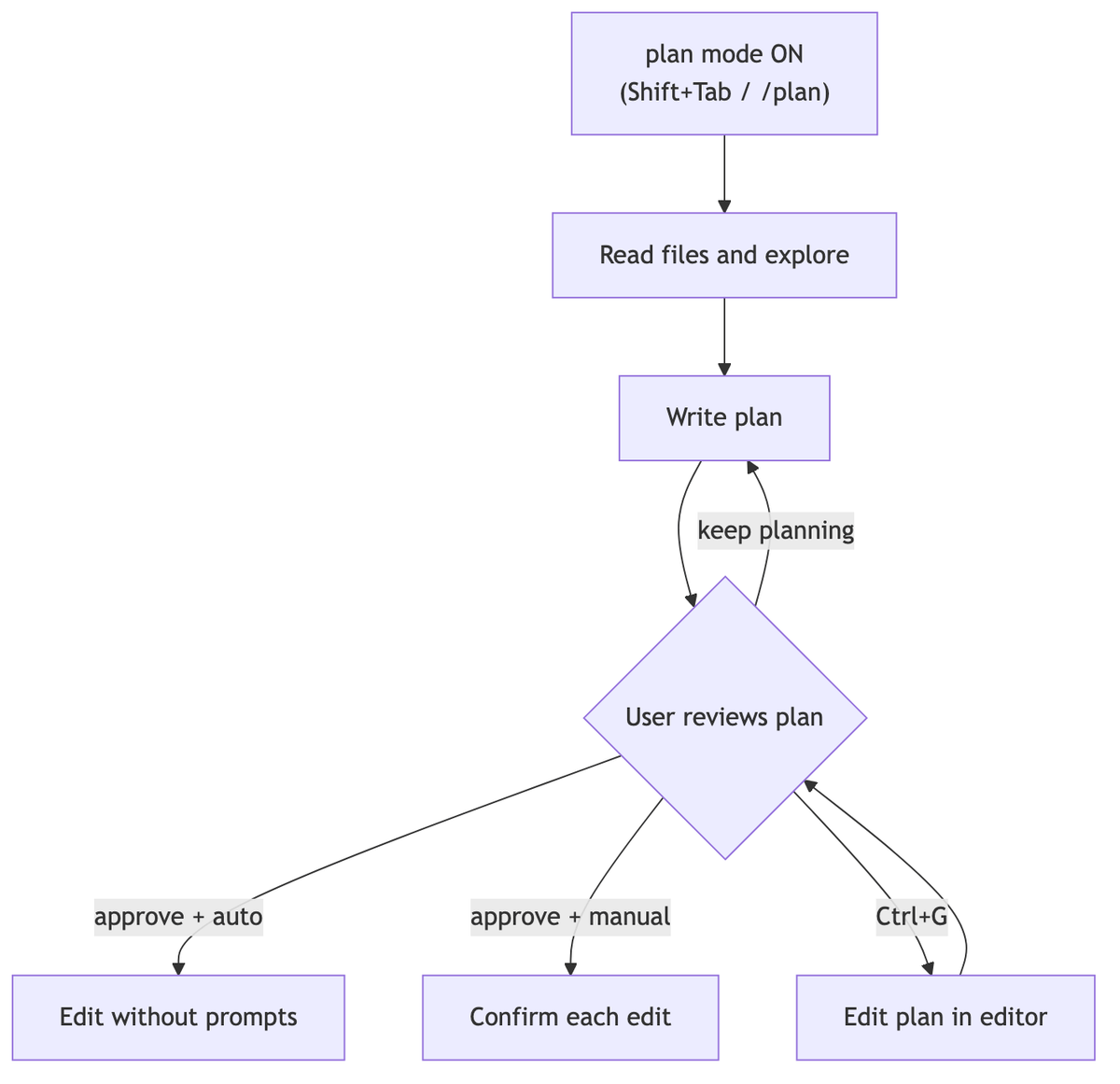
To edit the plan directly, press Ctrl+G. The proposed plan opens in your default text editor, where you can modify it before proceeding.
After approval, Claude leaves plan mode and switches to the permission mode matching your choice. If no name was set, the session is also automatically named from the plan when approved.
Investigation continues during planning
Plan mode does not mean that no commands can run.
Read-only commands, such as reading files, run as usual. Other shell commands either ask for approval or, in environments that support auto mode, are reviewed by a classifier model (the default setting).
That is why requests such as “run the tests and create a plan” can also be handled inside plan mode after one approval.
Make it the default
You can make plan mode the default for a project. One line in .claude/settings.json is enough.
{
  "permissions": {
    "defaultMode": "plan"
  }
}
Sessions in this project then start in plan mode, preventing accidental immediate edits. Sessions launched by the VS Code extension use the extension setting (claudeCode.initialPermissionMode) separately.
When should you use it?
Plan mode is not necessary for every task. Getting a plan for a typo fix is overkill.
It has the most impact in cases like these.
- Refactoring or structural changes across multiple files
- When you want to verify the approach first because the codebase is unfamiliar
- When you want a team review or personal review before deciding how to fix it
Conversely, small changes limited to one file are fine in the default mode.

Summary
Plan mode changes “fix it first and see what happens” into “agree first, then fix it.”
Enable it with Shift+Tab or the /plan prefix, then review and edit the plan before approving it to start editing. The larger the change, the more the few minutes spent planning reduce the cost of reverting.
The next part covers the full permission system underlying plan mode: /permissions, permission-mode cycling, and the allow, ask, and deny rules.
Sources and verification criteria
- Claude Code official documentation — Choose a permission mode (Anthropic, checked 2026-08-12)
- Claude Code official documentation — Common workflows (Anthropic, checked 2026-08-12)