
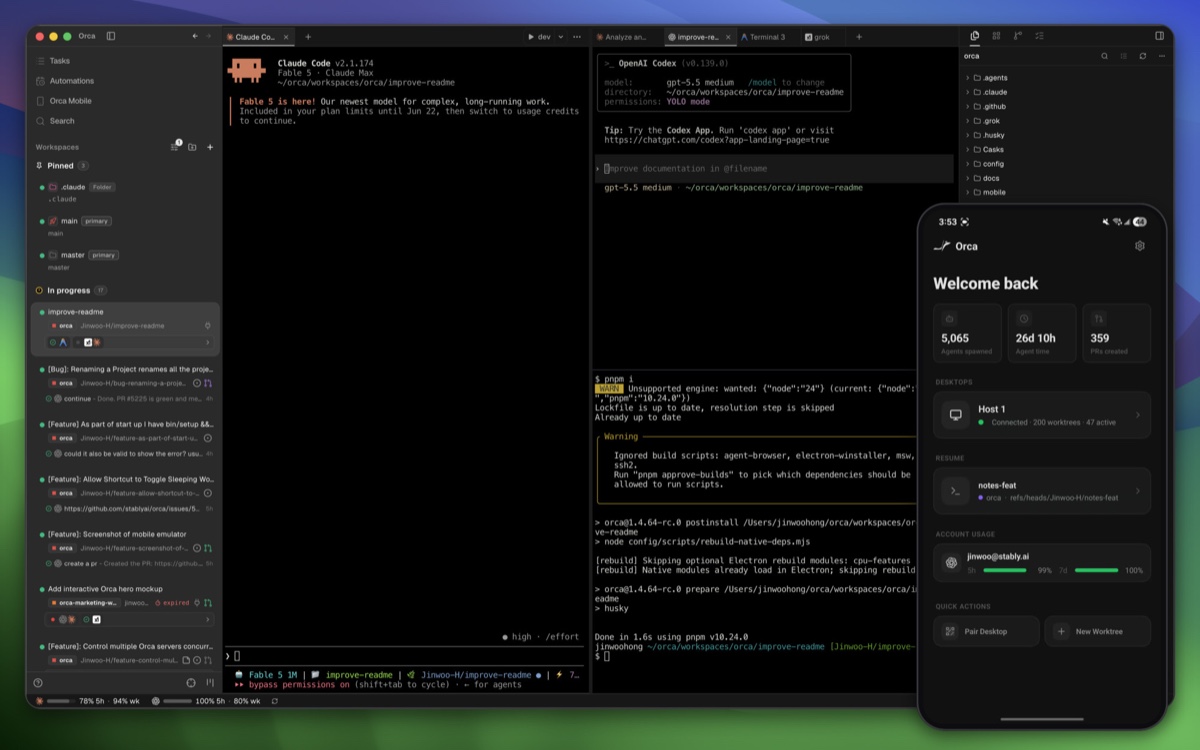
When using multiple AI coding agents, you may spend more time checking “who is doing what on which branch” than writing code. With several terminals open, branches changing, and diffs to compare, the benefits of parallel work quickly fade.
Orca is an open-source Agent Development Environment (ADE) that tackles this problem directly. It runs CLI coding agents such as Claude Code, Codex, and OpenCode simultaneously in isolated Git worktrees, while keeping terminals, editors, browsers, diff reviews, and Git operations connected in one app.
If an IDE is an environment for people to write code, an ADE is closer to an environment where people and multiple agents work together.
What kind of tool is Orca?
Orca is not “another model that codes for you”; its core is a workspace for operating the coding agents you already use. You can bring your existing Claude Code and Codex subscriptions and CLI environments, run them side by side, and use macOS, Windows, or Linux.
The biggest difference from a typical terminal app is that each unit of work is connected to a Git worktree. Separate tasks such as feature development, bug fixes, and refactoring are placed in independent directories and branches. One agent can fix authentication while another adds tests without overwriting each other’s files.
| Typical single-work environment | Orca’s worktree-based environment |
|---|---|
| Stash changes when switching branches | Use a separate directory and branch for each task |
| Remember the context of multiple terminals manually | Agents and terminals belong to worktrees |
| Switch between branches to compare results | Review multiple results side by side |
| Move between browser, editor, and Git tools | Connect the development flow in one screen |
How do you run multiple coding agents in parallel?
Orca uses Git worktree as the basic unit of work isolation. When you create a task, it creates an independent worktree and branch from the base branch, then manages the agent terminal, files, and browser tabs together inside it.
For example, you can assign the same requirement to multiple agents to compare approaches, or split frontend, backend, and testing tasks and run them simultaneously. When the work is done, review the diff and commit the result you prefer or send it as a PR. The official phrase “no stashing, no branch juggling” comes directly from this structure.
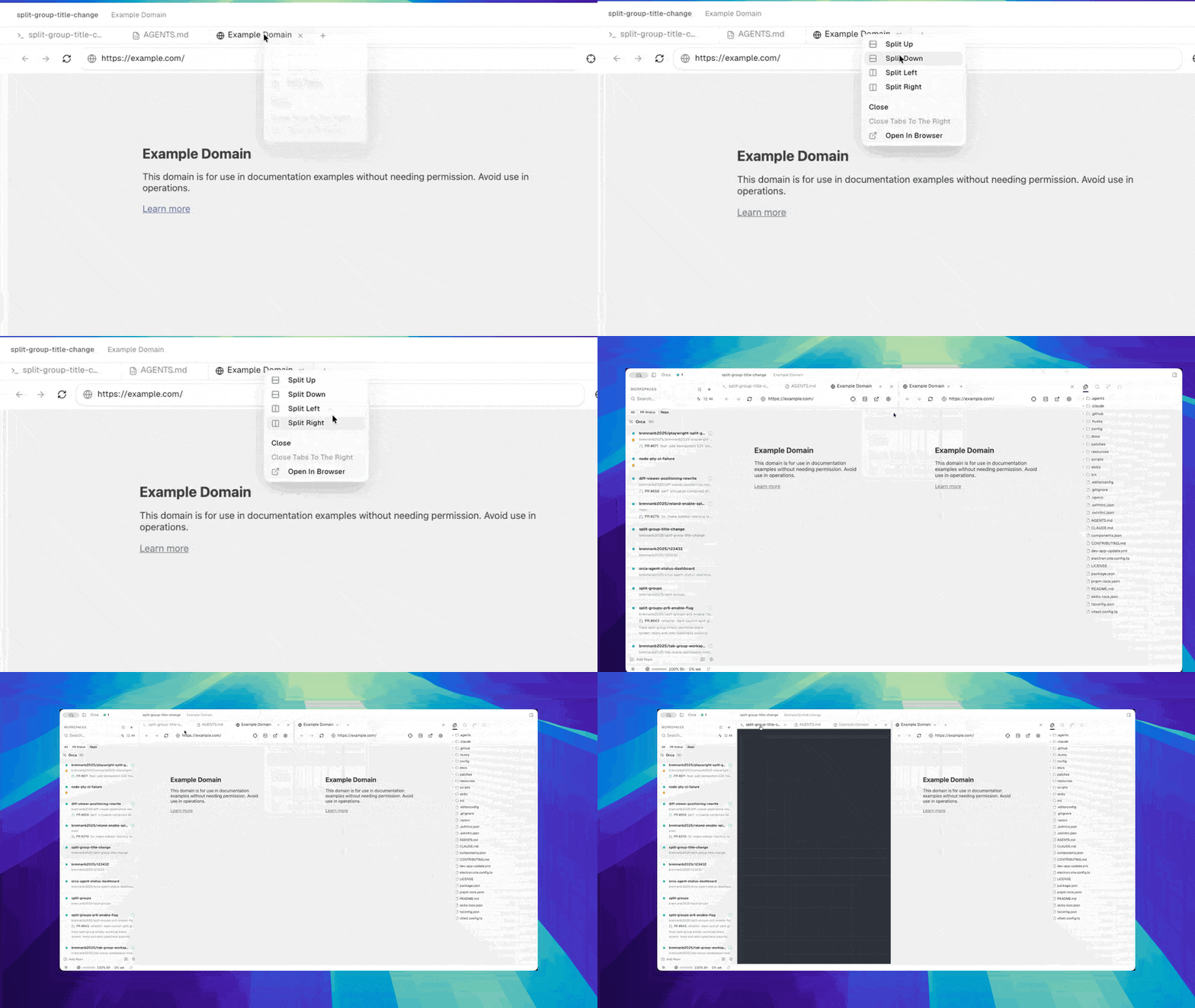
The important point is not simply increasing the number of agents. Clearly separating work boundaries and keeping each result ready for review is what delivers the practical benefit of parallel development. Orca’s sidebar shows at a glance which agents are running, finished, or waiting for input.
Why are the browser and Design Mode useful?
When modifying a web UI, descriptions such as “reduce the button spacing a little” make it difficult to identify the exact element. Orca provides a real Chromium browser for each worktree; clicking an element on screen in Design Mode sends its HTML, CSS, and a cropped screenshot to the agent.
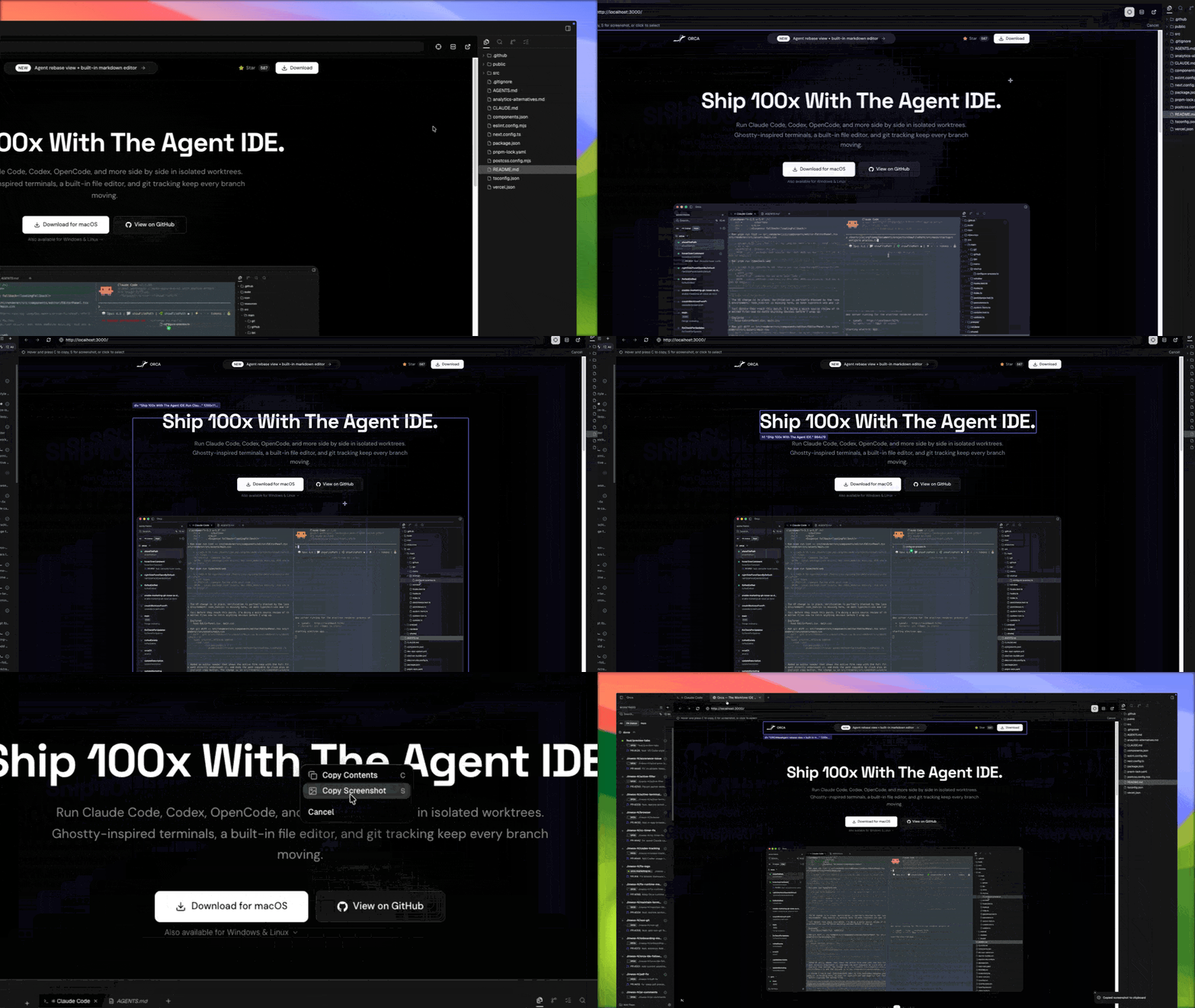
Browser tabs and login sessions are also maintained per worktree, so contexts do not mix when testing multiple features at once. With Orca CLI, an agent can perform actions such as snapshot, click, and fill in the same browser. The screen a person is viewing and the screen an agent automates become one continuous flow.
The terminal also goes beyond simply collecting multiple windows. It provides split panels, scrollback restored after a restart, search, and agent status indicators. In the source control view, you can leave line-level comments on an AI-generated diff and ask the agent to revise it.
From PR review through mobile checks
Inside Orca, you can open GitHub PRs and issues, create a worktree directly for the task, and ask an agent to review it. The following video shows an AI-assisted PR review workflow published by Orca’s official X account.
The original video is also available at Official Orca X post.
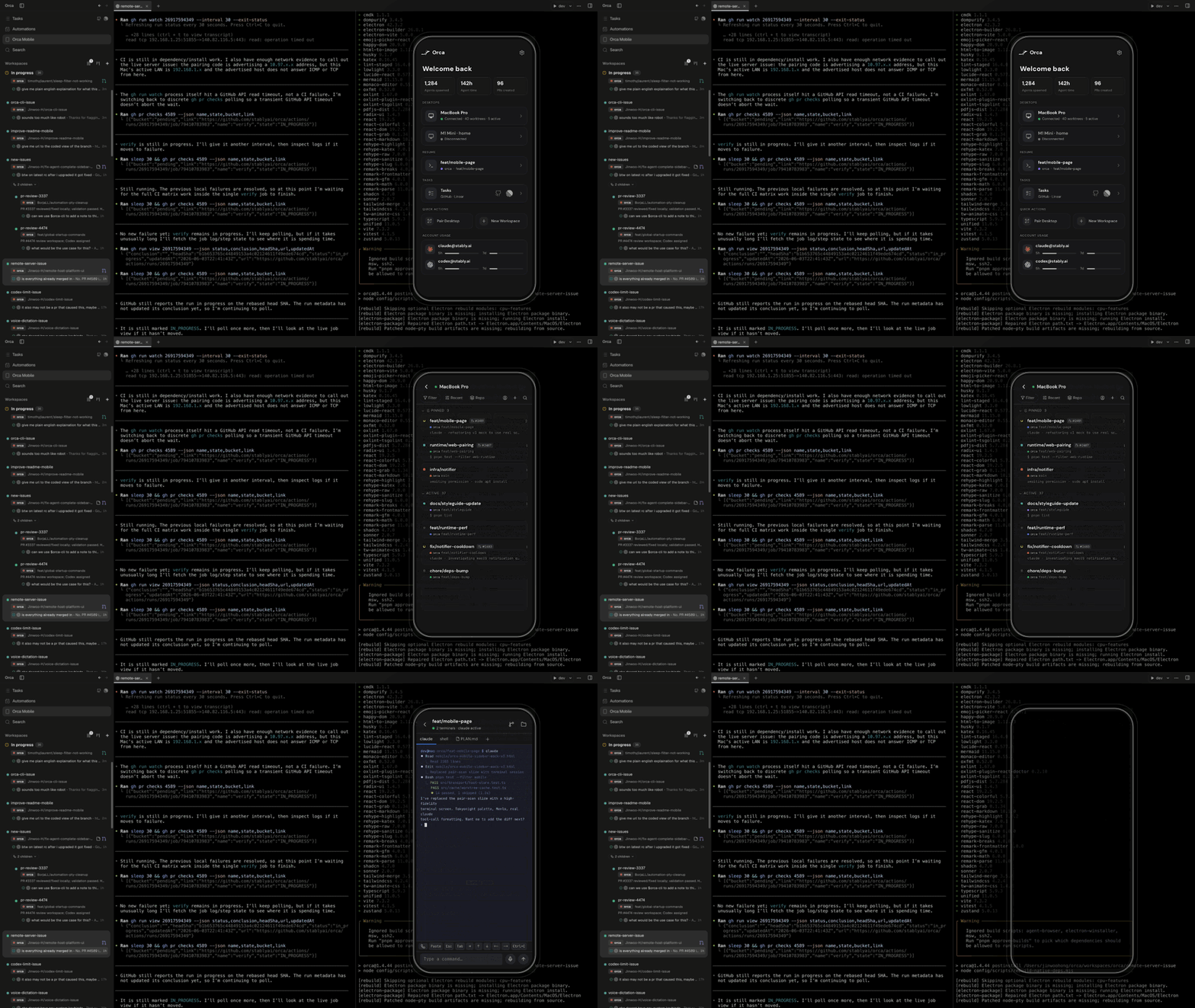
If you need to check work status while away, you can use Orca Mobile Companion. As of July 2026, on iOS and Android you can view agent status and recent terminal output, send a short reply to an agent waiting for input, or receive notifications. The mobile app is less a full editor replacing the desktop and more a remote control for checking running work and unblocking stalled flows.
When is it especially useful?
| Situation | Assessment |
|---|---|
| Use multiple CLI agents such as Claude Code and Codex together | Orca’s benefits are clear |
| Independent branch work frequently arises for each feature | Worktree isolation has a major impact |
| Repeat UI changes and browser verification | The built-in browser and Design Mode are useful |
| AI-generated diffs require careful review | The comment and source-control flow fits well |
| Occasionally make short changes in a single repository | The existing IDE and terminal may be enough |
Orca is not an automatic coding button that hands every decision to agents. It is a tool for safely separating multiple agents’ work and helping people review progress and diffs more effectively. Before parallel execution, keep task scopes small and clearly document each worktree’s completion criteria and verification commands.
Install it by downloading the version for your operating system from Official download page, or get started with Homebrew on macOS.
brew install --cask stablyai/orca/orcaIf you already use multiple coding agents but find terminal and branch management burdensome, Orca is worth considering as a tool that redesigns the development workbench for the agent era, rather than “a tool that adds one more model.”