
![Cover image for [Vibe Coder #5] Read errors and escape AI bug loops](/assets/images/posts/7130fab4-6bf4-482f-baa3-e0f1e30625a6/error-message-confession-1.jpg)
When red error messages cover the screen, your heart sinks. The English is dense, full of unfamiliar words, and seems not to tell you what went wrong. So many vibe coders close the message without reading it and tell AI, “It doesn’t work—fix it.” Then AI starts changing the wrong parts.
Here is the trap. An error message is actually a confession left by the culprit. What happened and where it happened are already written there. Once you know how to read it, half the problem is solved; pass it to AI as-is and the other half goes faster. This episode covers how to read error messages, how to relay them properly to AI, and how to escape when AI keeps circling the same bug without fixing it.
The structure of an error message: find just three things
Every error has the same structure. You only need to find three parts.
- What happened (error name and description): Usually this is the first line. Something like
TypeError: Cannot read properties of undefined. Literally, it means “tried to take something out of nothing.” It is like trying to open a package that never arrived. - Where did it happen (file and line number): If you see a notation like
app/page.tsx:42, it means line 42 of theapp/page.tsxfile. That is the crime scene. - How did it happen (stack trace): The list that follows is the call path leading to the incident. There is no need to panic; just know that the top few lines are the records closest to the crime scene.
You do not need to understand everything. If you grasp only “what happened + where,” you are already ten times better off than someone who does not read errors.
Errors live in two places
The distinction from Part 1 returns here. Errors appear in two places, and where you should look depends on the symptom.
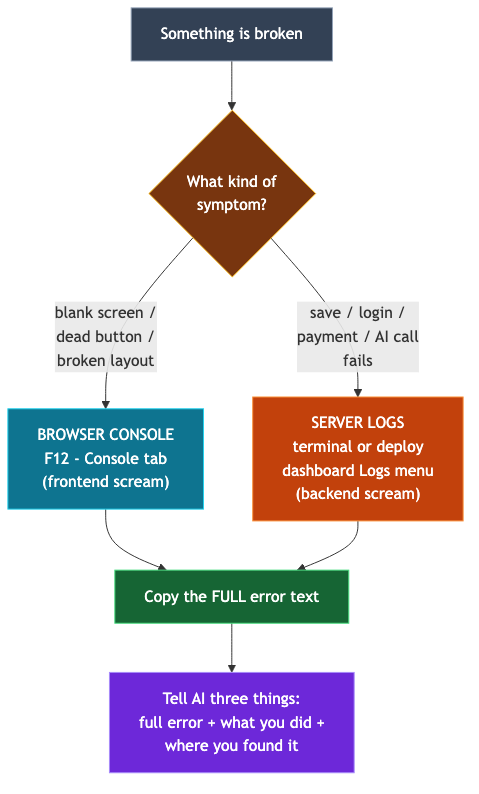
- Browser console (the frontend’s scream): When the screen is blank, buttons do not respond, or part of the UI is broken. Press F12 in the browser (or right-click → Inspect) and open the Console tab.
- Server logs (the backend’s scream): When saving, login, payments, or AI calls fail. During development, they appear in the terminal running the development program; after deployment, they appear under the Logs menu of the deployment-service dashboard from Part 4.
The screen may say only “Something went wrong,” while the server logs contain the real cause. Do not look only at the screen and conclude, “There is no error message.” Make it a habit to open both places.
How to relay errors to AI: send everything, with context
Once you find the error, relay it to AI like this.
- Copy the entire message. The later lines often contain clues, so do not send only the first line. Copying the text is better than sending a screenshot.
- Include the context. Say what you were doing when it happened, such as “after I clicked the sign-up button,” and what you expected, such as “it should have gone to the welcome page.”
- Say where you found it. Was it “in the browser console” or “in the server logs”? That one detail cuts the area AI has to search in half.
The difference between a bad question and a good one is this large. “Saving doesn’t work, fix it” sends AI searching without a map. “When I click Save, the screen stays the same, but this error appears in the server logs: (paste full error). It should show a new post in the list” gives AI both the crime scene and the confession.
When AI keeps circling: 4 ways out
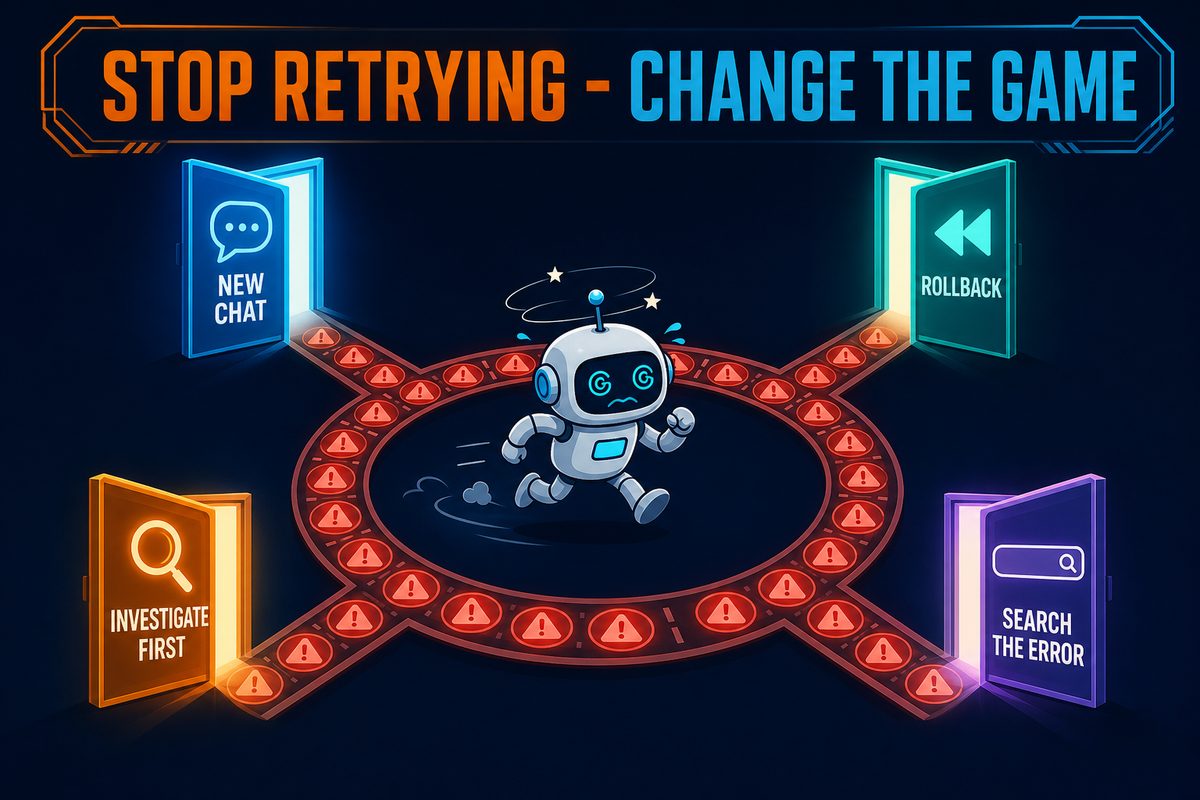
If AI has failed to fix the same bug three or four times, from that point it is faster to change the game than to increase the number of attempts.
1. Start a new conversation. In a conversation full of failed attempts, AI keeps following the wrong hypotheses it created. Open a new conversation and clearly provide only the current symptom and error; surprisingly often, it works on the first try.
2. Roll back and try again in smaller steps. Part 3’s save point pays off here. If successive edits have turned the code into a patchwork, return to the last commit and ask for the failed change again, one smaller unit at a time.
3. Ask for investigation first. Instead of “fix it,” say, “Do not fix it yet. Find three possible causes of this error and tell me how to verify each one.” Tell AI to fix something and it rushes; ask it to investigate and it surprisingly becomes methodical. Once the cause is narrowed down, have it make the fix—the hit rate improves greatly.
4. Search the original error. Paste the first line of the error message directly into a search box. There is a high chance someone around the world has already encountered and solved it. Another powerful combination is to give AI a search-result link and ask, “Check whether this solution fits my situation.”
Summary
- Error messages are confessions. Find only “what happened (first line) + where (file:line number),” and half the problem is solved.
- Errors live in two places: the browser console (screen problems) and server logs (saving, login, and payment problems). Open both.
- Give AI three things together: the full error, what you were doing when it happened, and where you found it.
- When AI keeps circling, do not increase the number of attempts; change the game. New conversation, roll back and go small, investigate first, search the original error.
In the next episode, we cover a classic problem that looks like a mystery: “It worked until yesterday, but not today.” Why does it suddenly stop working when you did not touch the code? We will examine the likely culprits in order.